Wednesday, July 01, 2009

Save DBF Files in Excel 2007

Microsoft has decided not to support dBase files in Excel 2007. Many GIS users and especially people in South America where FoxPro is still widely used were left without an easy-to-use data editing tool.

XLSX2DBF is an Excel 2007 add-in that helps convert and/or save a native DBF file that was edited with Excel 2007.

Two common scenarios are supported:

A) Open a native DBF file in Excel 2007 – Make changes – Save as a native DBF file with the changes.

B) Open/create an Excel file that looks like a database (headers/columns/rows) – Save as a native DBF file.

NOTES:

• The second scenario requires the header (field names) to meet dBase field naming standards (max. 10 characters, no spaces etc.).

• The native dBase file will not ‘bloat’ in size and all field types/sizes will be the same as the original.

• Excel 2007 still reads/opens DBF files; however it will not save them as DBF. You can associate the dbf extension with Excel and then you can open the dbf file in Excel by simply double-clicking on it (how to set the default program for a file type: http://www.youtube.com/watch?v=O7ateZy-DTE).

• Excel 2007 requires a slightly different process for add-in installation. See how at http://peltiertech.com/WordPress/installing-an-add-in-in-excel-2007/.

• Binary, MEMO, OLE fields are not (yet) supported.

• The original dbf file is never overwritten. Another dbf file with the same name and ‘_new’ suffix is created in the same folder. The original index files (NDX, MDX, CDX, IDX etc.) and memo files (DBT, FPT), if any are not copied with the ‘_new’ suffix. This is done to protect the integrity of the original data.

INSTALLATION INSTRUCTIONS:

1. Unzip xlsx2dbf.zip into a temporary directory.

2. Copy xlsx2dbf.xlam to one of the trusted locations (try C:\Program Files\Microsoft Office\Office12\XLSTART\)

3. Install the Excel 2007 add-in. See how at http://peltiertech.com/WordPress/installing-an-add-in-in-excel-2007/.

After successful installation, the add-in appears as XLSX2DBF on the right side of the menu. Clicking it will show a ribbon as presented below:


KNOWN ISSUES:

If the add-in does not execute after installation (i.e., upon opening Excel 2007, the macro is disabled despite being in a trusted location), you will need to install the Office 2007 Service Pack 2.

If you create some data 'from scratch' in a new Excel workbook, first you have to save it as an Excel file (any name will do if it is a temporary file). Once the file is saved, you can click the XLSX2DBF button on the ribbon and the active sheet will be saved as a DBF file. Unnamed workbooks are not 'known' to Excel until they are saved (even if they contain data you entered).

DOWNLOAD the add-in from the September 1, 2009 post (UPDATED version).

SUPPORT: If I helped you out, please donate any small amount by clicking on the DONATE button on the sidebar of this blog.

Monday, November 13, 2006

Excel UserForm Tricks

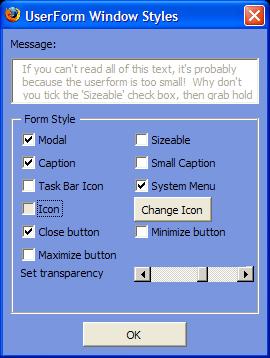
UserForms are great tools to add some “spice” to your Excel applications; however they seem rather limited and dull when compared to other “professional” programs written in C++ and other advanced programming languages.

Guess what! Visual Basic for Applications combined with the power of standard Windows API (Application Programming Interface) calls can pretty much achieve anything that your heart desires when it comes to UserForms.

Windows API calls are simply references to standard library functions that are available to anyone programming under the Windows environment. An excellent place to look at the myriads of utilities that can be developed using Windows API calls is at http://www.xcelfiles.com/APIIndex.html developed by Ivan Moala.

There are plenty of places on the Internet that explain how to call standard Windows API from Excel; one of the best ones can be found at http://www.informit.com/articles/article.asp?p=366892&rl=1 .

Stephen Bullen developed a Form Class in Excel that makes it very easy to modify your UserForm without having to understand the intricacies of Windows API calls. His site has a lot of goodies at http://www.oaltd.co.uk/Excel/Default.htm .


To hide the Close button of your UserForm becomes as simple as:

myForm.ShowCloseBtn = False

or to hide the Caption

myForm.ShowCaption = False

I added to this class the ability to change the transparency (opacity) of the UserForm and also to make the UserForm “draggable” even if the caption of the form is not shown.


Setting the opacity of the UserForm to semi-transparent is as simple as:

myForm.Opacity = 180

Opacity can be set from 0 (invisible) to 255 (normal). However, setting it to zero might create some problems…;-) I suggest a range of 80-255 would be plenty to experiment with.

Enabling the user to drag the form using the left mouse button, even if the caption is hidden is also a simple line of

myForm.SetDraggable

Making the form draggable is actually quite ingenious (and therefore has nothing to do with me!). It provides us VBA programmers a glimpse of how Windows works and it is worth explaining BRIEFLY.

Windows works based on messages it gets from a queue. Windows looks at the message queue and processes those messages one after the other. Well, luckily for us, we can send messages to this queue using Windows own SendMessage function. In fact, we can hijack the process and inject our own messages (hooks) into the queue. Note to aspiring hackers: this is not as easy to do as it sounds, especially if you want to send hooks to the queue for a window that your original process does not “own”.


But for us, trying to manipulate an Excel window (i.e., UserForm) from within Excel VBA, this is very doable.

So when we make the UserForm draggable we essentially do the following:

When the user presses down the left mouse button:

  1. Release the mouse and make it available for normal mouse input (in other words, ignore the fact that the left mouse button is clicked)

This is achieved by using the ReleaseCapture function of the user32.dll available to all Windows users.

  1. Send Windows a message that says: “Hey, the left mouse button is down on the userform’s caption!”

This is achieved by calling the SendMessage function of the user32.dll available to all Windows users. Of course you are tricking Windows to think that it is happening, when it is not. Pretty neat, huh?

Well, this is it.

Download

Why don’t you have a look at the code and the demo UserForm here?

What's Next?

My next project will be to add the SetShape method to the class so you can create transparent UserForms that can take any shape (oval, polygon, star, etc.). Yes, even a donut with a big hole in the middle! It probably does not come as a surprise that those all use Windows API calls. as well.

Monday, October 23, 2006

Finally...it got under way.

I have been planning on setting up this blog for quite some time, but there was always "one more" project that got in the way. My plan is to release a few short postings on advanced Excel techniques that are either not well known or hard to find on the net.

I will be releasing "how to" postings on Excel Userforms that will include techniques on how to set transparency, remove caption and also on how to create skinable forms (the kind that can take on any shape, not just the boring rectangle) using standard API calls available in Windows.

I will also discuss how to embed web services into Excel (much easier to do in Excel 2003!), how to embed Google Maps and other services.

So now this is under way! Phew!